A high website Spam Score can be concerning for website owners, bloggers, and SEO professionals. If your website has suspicious backlinks, irrelevant referring domains, or potentially harmful link patterns, understanding how to investigate them is an important part of maintaining a healthy backlink profile.
Learning how to reduce spam score of website starts with identifying suspicious backlinks, reviewing your website’s SEO metrics, and understanding which links actually require attention.
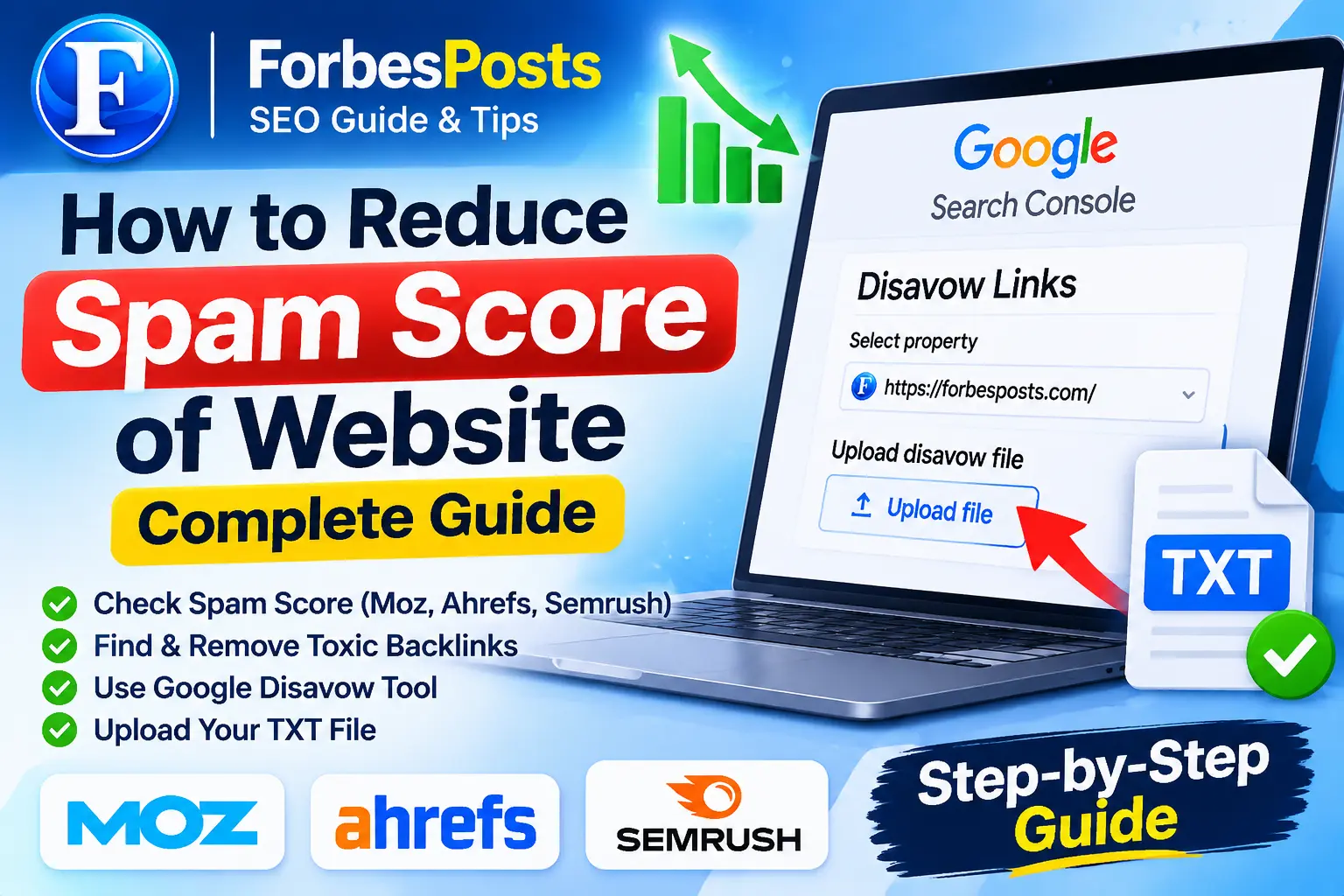
In this guide, you will learn how to check website Spam Score using Moz, analyze backlinks with Ahrefs and Semrush, prepare a Google Disavow TXT file, and upload it through Google’s official Disavow Links Tool.
Whether you manage a personal blog, business website, or multiple client websites, this step-by-step guide will help you understand the process.
What Is Website Spam Score?
Website Spam Score is a third-party SEO metric developed by Moz to estimate how closely a website resembles websites that have previously been penalized or banned by Google.
Moz uses 27 different features to calculate its Spam Score. These indicators help website owners investigate potentially risky characteristics in their backlink profiles.
Moz divides Spam Score into three categories:
- Low Spam Score: 1%–30%
- Medium Spam Score: 31%–60%
- High Spam Score: 61%–100%
However, a high Spam Score does not automatically mean Google has penalized your website.
It is important to understand that Moz Spam Score is not an official Google ranking factor. It should be treated as an investigation metric rather than proof of a Google penalty.
How to Check Website Spam Score
Before learning how to reduce spam score of website, you should first understand your current backlink profile.
Several professional SEO tools can help you investigate suspicious links and evaluate referring domains.
1. Check Moz Spam Score Checker
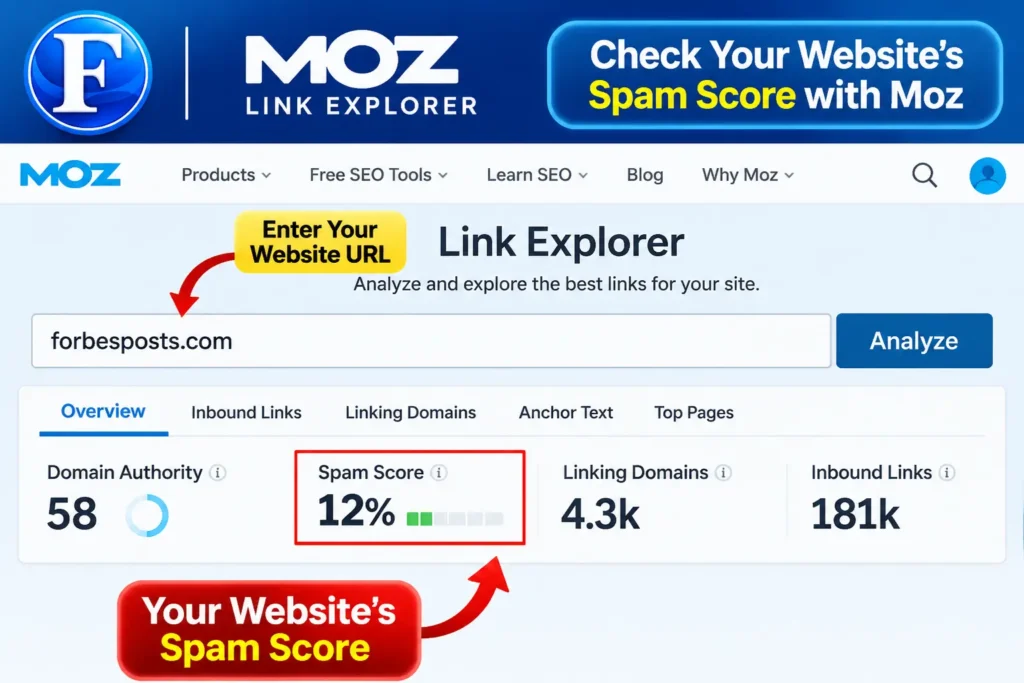
Moz Link Explorer allows users to investigate backlink information and Spam Score.
Visit:
Follow these steps:
- Open Moz Link Explorer.
- Enter your website domain.
- Run the available analysis.
- Review your Spam Score.
- Check inbound links and referring domains.
- Investigate suspicious websites linking to your domain.
Look for unusual backlink patterns, irrelevant referring domains, and other indicators that may require further investigation.
Suggested image: Moz Link Explorer dashboard showing Spam Score.
Image Alt: Moz Spam Score checker for website backlink analysis.
2. Analyze Backlinks Using Ahrefs
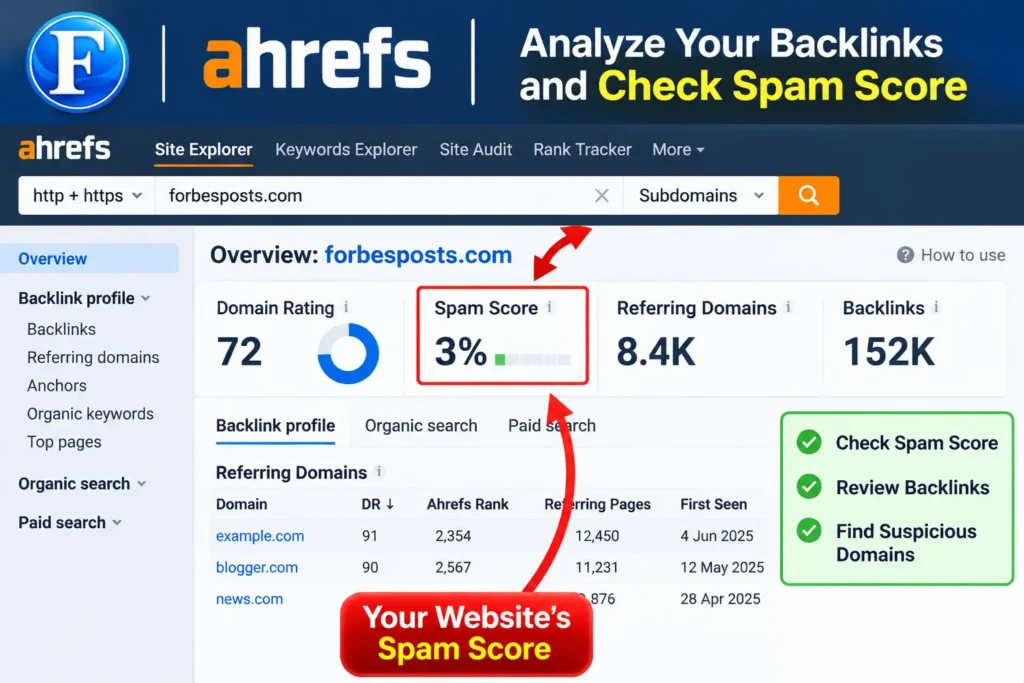
Ahrefs is another professional SEO tool that helps website owners understand their backlink profiles.
Visit:
https://ahrefs.com/site-explorer
Enter your website URL and review the following reports:
- Backlinks
- Referring Domains
- Domain Rating (DR)
- Anchor Text
- New and Lost Backlinks
- Organic Traffic
Does Ahrefs have a Spam Score?
Ahrefs does not provide the same numerical Spam Score metric as Moz. Instead, it provides backlink analysis and other SEO metrics that help users investigate link quality.
A low Domain Rating does not automatically mean a referring domain is spammy.
Suggested image: Ahrefs Site Explorer showing backlink and referring domain reports.
Image Alt: Ahrefs backlink analysis for identifying suspicious referring domains.
3. Use Semrush Backlink Audit
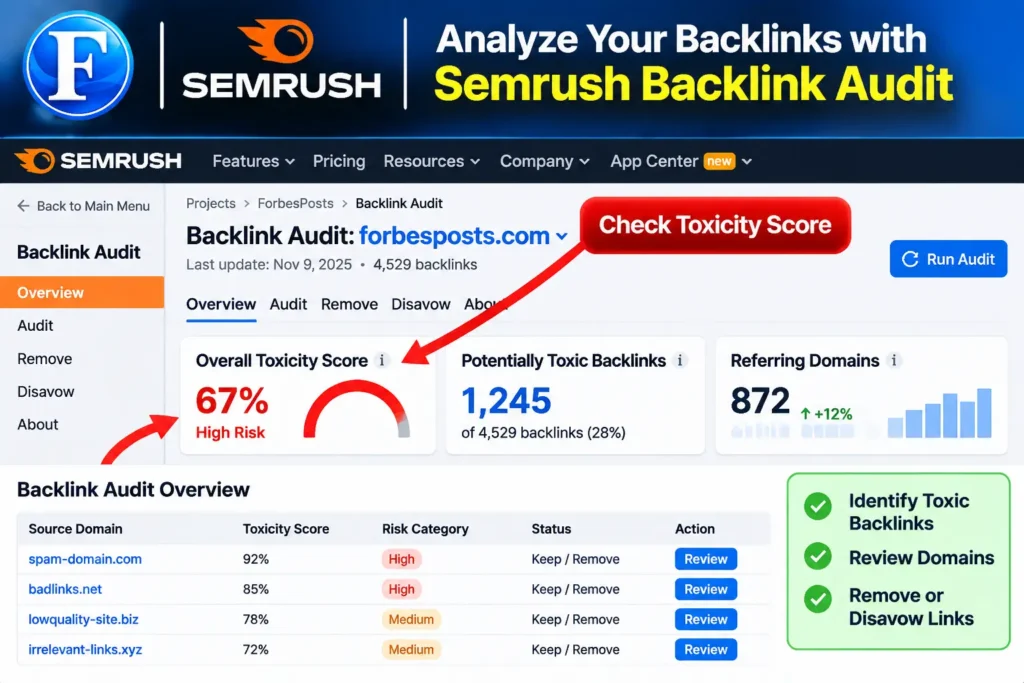
Semrush provides a Backlink Audit tool that evaluates potentially toxic backlinks using its own Toxicity Score and indicators.
Visit:
After setting up your project, open Backlink Audit and review the available backlink information.
Pay attention to:
- Potentially toxic backlinks
- Suspicious referring domains
- Unnatural anchor text
- Unusual linking patterns
- Backlink toxicity indicators
Remember that third-party toxicity scores are not equivalent to Google’s assessment of a backlink.
How to Reduce Spam Score of Website
After checking your website, the next step is to investigate the backlinks that may require attention.
Here are practical steps to follow.
1. Identify Suspicious Backlinks
Collect backlink information from Moz, Ahrefs, and Semrush.
Compare the reports and investigate links that show suspicious patterns.
Examples include:
- Links from hacked websites.
- Automatically generated backlinks.
- Paid links intended to manipulate search rankings.
- Unnatural exact-match anchor text patterns.
- Links from irrelevant websites with suspicious content.
- Large numbers of artificial links from unrelated domains.
Do not automatically classify every low-authority website as harmful.
Review the actual website, its content, relevance, and linking behavior before taking action.
2. Request Removal of Unwanted Backlinks
If you identify links that violate Google’s link spam policies, contact the website owners and request removal.
Keep a record of your requests and responses.
If the links cannot be removed, you may need to investigate whether Google’s Disavow Tool is appropriate.
3. Prepare a Google Disavow TXT File
A disavow file tells Google which backlinks you want it to ignore when evaluating your website.
However, Google recommends using this tool only in specific circumstances, such as when your website has a considerable number of spammy or artificial links that have caused or are likely to cause a manual action.
Your final file must be saved as a plain-text .txt document.
Example of a domain disavow file:
# Disavow suspicious domains

domain:example-spam.com
domain:unwantedlinks.com
domain:badbacklinks.net
Example of an individual URL:
https://example.com/spammy-backlink-page.htmlFollow these file requirements:
- One domain or URL per line.
- Use
domain:to disavow an entire domain. - Save the file in UTF-8 or 7-bit ASCII encoding.
- Use the
.txtfile extension. - Maximum file size: 2 MB.
- Maximum number of lines: 100,000.
Never upload an unreviewed list of every low-DR or high-Spam-Score domain.
How to Upload a Disavow File to Google Search Console
Once your final TXT file is prepared and reviewed, you can upload it through Google’s official Disavow Links Tool.
Step 1: Visit the Official Google Disavow Tool
Open the following official link:
https://search.google.com/search-console/disavow-links
Sign in with the Google account that has access to your website’s Search Console property.
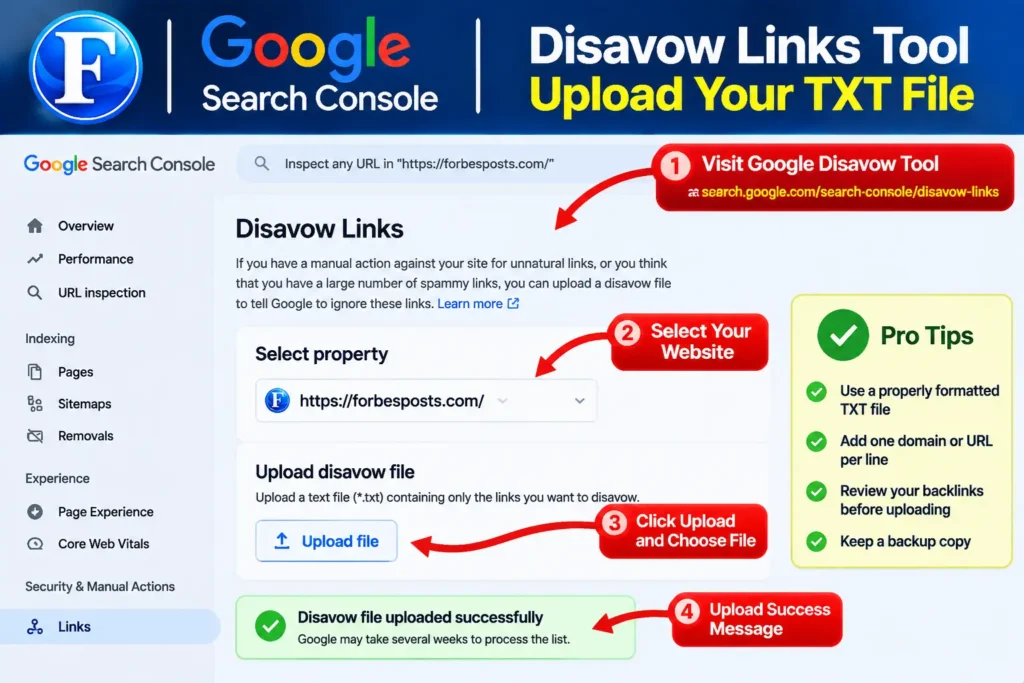
Step 2: Select Your Website Property
Select the correct website property from the available list.
Make sure you select the website for which you prepared the backlink report.
The Disavow Tool requires an eligible URL-prefix property rather than a Domain property.
Step 3: Upload Your TXT File
After selecting your property:
- Click the upload option.
- Select your final disavow
.txtfile. - Confirm the upload.
- Review any errors displayed by Google.
If Google identifies formatting problems, correct your file before uploading again.
Step 4: Confirm Your Disavow File
After uploading, check the confirmation message and review the uploaded list.
Keep a backup of your TXT file.
Important: Uploading a new disavow list replaces the previously uploaded list for that property. Your replacement file should therefore include all the domains and URLs you still want to disavow.
Google may take several weeks to incorporate the list as it recrawls and reprocesses the affected pages.
How to Get a Professional Spam Score and Backlink Audit
Preparing a disavow file requires more than exporting backlinks from an SEO tool.
You need to compare backlink reports, investigate suspicious referring domains, review link patterns, and carefully decide which domains may require disavowing.
If you do not have the time or experience to perform this analysis yourself, professional assistance can make the process easier.
Get Professional Backlink Analysis and Disavow TXT File
We offer SEO backlink analysis assistance using professional tools and available backlink reports.
Our service can help with:
- Moz Spam Score analysis.
- Ahrefs backlink analysis.
- Semrush backlink toxicity review.
- Suspicious referring domain investigation.
- Backlink quality assessment.
- Google Disavow TXT file preparation.
- Guidance on uploading your final file.
Get Professional SEO Assistance on Fiverr:
https://www.fiverr.com/s/odWLyl8
Share your website URL and relevant SEO reports to get assistance with your backlink analysis and disavow file preparation.
Is Your Website Struggling to Grow? Get a Free SEO Audit
Spam Score is only one part of website SEO.
If your website is losing organic traffic, struggling with keyword rankings, or experiencing backlink and technical SEO problems, you should investigate the overall health of your website.
ForbesPosts provides a free SEO resource to help website owners understand potential problems affecting their website growth.
Discover What’s Holding Your Website Back
Visit:
Explore potential SEO improvements related to:
- Website SEO performance.
- Backlink profile quality.
- Domain Authority and Domain Rating.
- Technical SEO problems.
- Organic traffic opportunities.
- Website growth strategies.
Understanding your website’s SEO problems is the first step toward developing a better optimization strategy.
Frequently Asked Questions
What Is a Good Spam Score?
Moz considers 1%–30% a low Spam Score, 31%–60% medium, and 61%–100% high. These ranges are indicators for further investigation, not official Google quality ratings.
How to Reduce Spam Score of Website?
Review your backlink profile, investigate suspicious referring domains, request removal of manipulative links, and consider Google’s Disavow Tool only when its specific requirements are met.
What Is Spam Score on Moz?
Moz Spam Score estimates how closely a website resembles websites that its model has identified as penalized or banned by Google. It uses 27 features.
Does Ahrefs Have a Spam Score?
No. Ahrefs does not offer the same numerical Spam Score as Moz. It provides backlink analysis, Domain Rating, and other metrics for investigating backlink profiles.
Can a High Spam Score Affect Google Rankings?
A high Moz Spam Score does not automatically affect rankings. It is not an official Google ranking factor. Investigate actual backlink patterns and check Search Console for manual actions.
Can I Upload a CSV File to Google Disavow Tool?
No. Google requires a plain-text TXT file. You must convert the relevant domains and URLs into the correct format before uploading.
How Long Does Google Take to Process a Disavow File?
Google says it can take several weeks for a disavow list to be incorporated as Google recrawls and reprocesses the affected URLs.
Should I Disavow Every Low-DR Domain?
No. Low Domain Rating does not automatically indicate a harmful backlink. Investigate the website and its linking behavior before making a disavow decision.
Final Thoughts
Learning how to reduce spam score of website requires a careful approach to backlink analysis.
Start by checking your website with Moz, reviewing referring domains through Ahrefs, and investigating potentially toxic backlinks using Semrush.
If you identify links that genuinely violate Google’s link spam policies, investigate removal options and consider preparing a properly formatted Google Disavow TXT file when appropriate.
For professional backlink analysis and disavow file preparation, visit our Fiverr service. For broader website SEO improvements, explore the free SEO resource at ForbesPosts.
A healthy backlink strategy should focus on genuine link quality, relevance, and compliance with Google’s guidelines rather than simply chasing a lower third-party Spam Score.